
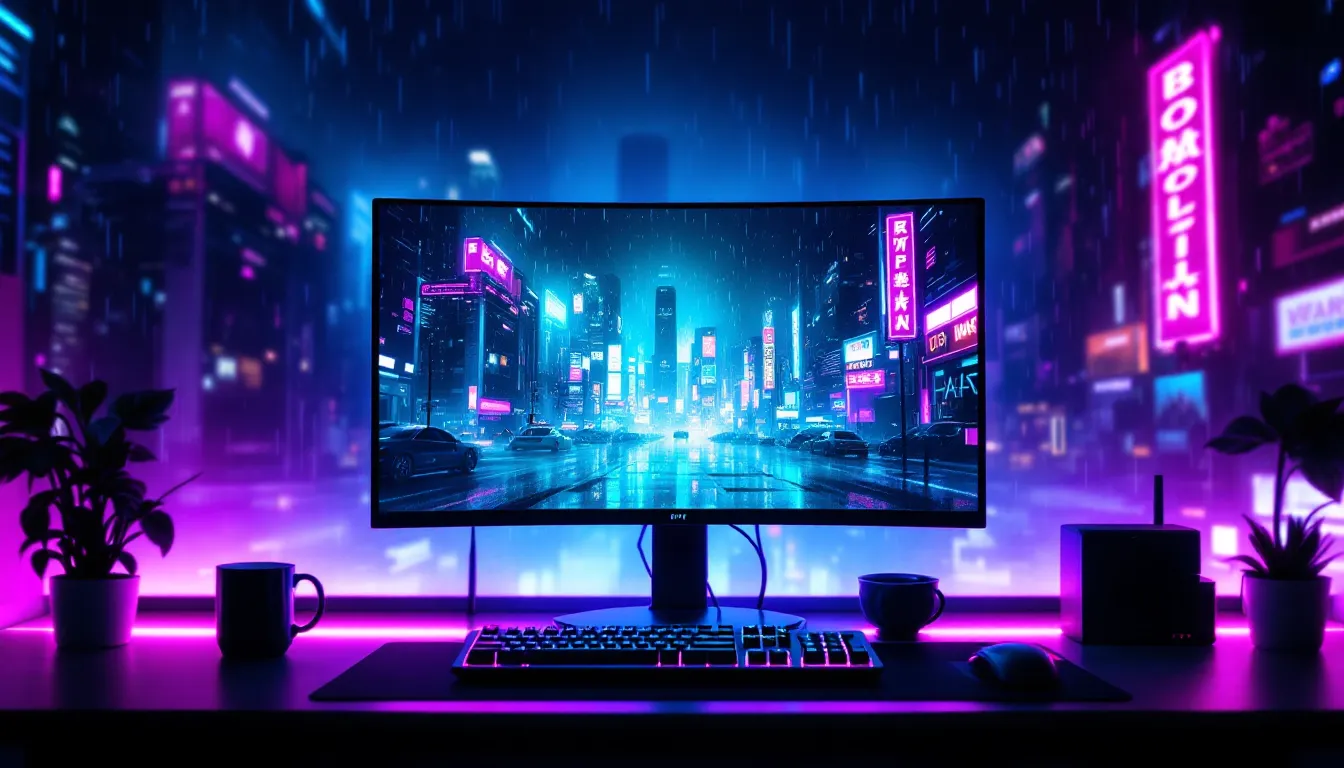

Static wallpapers are for NPCs. If you’re still staring at a frozen screenshot of Master Chief or a still image of Elden Ring, you’re missing out on one of the easiest ways to level up your gaming setup. Animated GIF wallpapers bring your desktop to life with looping action, whether it’s retro pixel art raining down, neon cityscapes pulsing with cyberpunk energy, or your favorite game characters doing their signature moves on repeat.
The tech has come a long way since the janky wallpaper apps of 2015. In 2026, animated wallpapers are smoother, more customizable, and surprisingly performance-friendly. Whether you’re rocking a high-end rig, a modest gaming laptop, or even a mobile device, there’s a way to add motion to your background without tanking your FPS. This guide covers everything from where to find the coolest gaming GIFs, how to actually set them up across platforms, and whether they’ll murder your frame rates mid-match.
Key Takeaways
- Cool gaming GIF wallpapers have evolved into a performance-friendly way to customize your desktop setup, with modern tools like Wallpaper Engine offering thousands of animated options that won’t tank your FPS when pause-on-fullscreen is enabled.
- MP4 wallpapers provide the best balance of quality and performance for gaming setups, supporting full color depth and higher frame rates better than traditional GIFs, while pixel art GIFs remain ideal for retro and vaporwave aesthetics.
- Top sources for finding gaming GIF wallpapers include Wallpaper Engine’s Steam Workshop, Tenor and GIPHY for quick discoveries, DeviantArt for unique fan-made content, and Reddit communities like r/wallpaperengine where users share curated gems.
- Cyberpunk and sci-fi aesthetics dominate 2026 trending wallpapers, with neon-soaked environments, particle effects, and rain animations that pair seamlessly with RGB gaming setups while remaining subtly animated rather than distracting.
- You can create custom gaming GIF wallpapers by capturing gameplay footage with OBS Studio, optimizing file sizes with HandBrake or ezgif.com, and exporting at 30fps or lower to balance visual quality with desktop resource usage.
- Mac and Linux users have viable animated wallpaper options—Desktop Movie for Mac and KDE Plasma or Komorebi for Linux—though Android and iOS support varies, with iOS limiting true animated home screen backgrounds until Apple policy changes.
What Are Gaming GIF Wallpapers and Why Are They So Popular?
Gaming GIF wallpapers are animated background images that loop continuously on your desktop or mobile screen. Unlike static wallpapers that just sit there, GIFs add movement, think flickering campfires in Dark Souls, rain effects in Blade Runner-style cityscapes, or pixel art characters doing idle animations.
The popularity spike in 2026 isn’t random. Gamers have always been early adopters of visual customization, and streaming culture has made setups more visible than ever. When you’re showing off your rig on Twitch or posting desk setups on Reddit, an animated wallpaper is an instant attention-grabber. Plus, software like Wallpaper Engine has matured to the point where animated backgrounds don’t feel like a novelty, they’re just part of a polished gaming environment.
How Animated Wallpapers Enhance Your Gaming Setup
An animated wallpaper does more than look cool (though that’s reason enough). It sets the vibe for your entire setup. If you’re grinding through a Cyberpunk 2077 playthrough, a looping neon cityscape with rain and holographic ads reinforces that atmosphere every time you tab out. Same goes for retro gaming sessions, a CRT scanline effect with pixel art characters keeps you in that nostalgic headspace.
There’s also a practical side. Subtle animations, like slow-moving clouds or gentle particle effects, can make your desktop feel less static during those moments between matches or while you’re in a Discord voice channel. It’s ambient, not distracting. Many gamers report that well-chosen animated wallpapers make their setup feel more “complete,” especially when paired with RGB lighting and themed peripherals.
One caveat: overdoing it backfires. A wallpaper with too much motion or clashing colors can turn your desktop into visual noise. The best animated wallpapers have a focal point and deliberate pacing, they enhance the space without screaming for attention.
The Difference Between GIF, MP4, and Live Wallpapers
Not all animated wallpapers are created equal. GIF wallpapers are classic looping images, usually short (2-10 seconds), with limited color palettes. They’re lightweight and compatible with older software, but compression can make them look chunky, especially at higher resolutions like 1440p or 4K.
MP4 wallpapers are video files that loop. They support full color depth, higher frame rates, and better compression than GIFs, which means smoother animations and crisper visuals. Wallpaper Engine and similar tools lean heavily on MP4 because they can handle complex scenes, think full game trailers or cutscene loops, without ballooning file sizes.
Live wallpapers are a broader category that can include interactive elements. Some respond to mouse movement, audio visualizers sync to your music or game sound, and weather-based wallpapers change based on real-time data. These are more resource-intensive but offer the most immersive experience.
For gaming setups, MP4 is usually the sweet spot. GIFs work great for retro or pixel art themes where the lo-fi aesthetic is part of the charm. Live wallpapers are fun if you have the headroom and want something interactive, but they’re overkill if you’re just looking for a clean looping background.
Best Sources to Find Cool Gaming GIF Wallpapers
Hunting down the perfect animated wallpaper can feel like searching for loot in a procedurally generated dungeon. You’ll find treasures and trash in equal measure. Here’s where to start your search.
Top Free Wallpaper Websites and Communities
Wallpaper Engine Workshop (Steam) is the gold standard. For the price of the app (usually under $5), you get access to hundreds of thousands of user-created animated wallpapers. The workshop is filterable by game, genre, and popularity, so you can easily find God of War fan animations, Hollow Knight pixel art loops, or abstract cyberpunk scenes. Quality varies, but top-rated submissions are often production-quality.
Tenor and GIPHY are go-to platforms for GIF discovery. Search for game titles + “wallpaper” or “loop,” and you’ll find everything from official game trailers chopped into loops to fan-made animations. The downside? Most GIFs here aren’t optimized for desktop resolutions, so you’ll often need to upscale or crop.
DeviantArt has a dedicated animated wallpaper community. Artists upload original work, including game-inspired pieces that you won’t find anywhere else. The gaming tech tutorials often reference DeviantArt as a source for unique wallpapers, especially for niche games or indie titles.
Premium Wallpaper Platforms Worth the Investment
If you’re willing to pay for higher-quality content, MyLiveWallpapers offers curated collections with premium polish. Their gaming category includes officially licensed content from major franchises, which means higher resolution, better optimization, and no copyright gray areas.
Wallpapers.com (formerly Wallpaper Abyss) has a subscription tier that unlocks 4K animated wallpapers with advanced filtering options. It’s overkill for casual users, but if you rotate wallpapers frequently and want a deep library, it’s worth considering.
Patreon and Ko-fi are sleeper picks. Many digital artists create animated wallpapers as patron rewards. If you follow game fan artists, check their tiers, you might snag exclusive loops of your favorite characters or games for a few bucks a month.
Reddit, Discord, and Social Media Resources
r/wallpaperengine is a goldmine if you’re using that app. Users share their creations, request specific themes, and troubleshoot performance issues. It’s also where you’ll find links to hidden workshop gems that haven’t hit the front page yet.
r/wallpapers and r/PixelArt frequently feature animated content. Sort by top posts from the past month, and you’ll find looping landscapes, game-inspired scenes, and retro animations ready to download.
Discord servers tied to specific games or content creators often have wallpaper-sharing channels. Valorant, League of Legends, and Apex Legends communities are especially active. Members share custom animations, often timed to new season launches or patch drops.
Twitter/X and Blueskey are solid for discovering artists who post WIP animations. Search hashtags like #pixelart, #gamingsetup, or #animatedwallpaper. Many artists share download links directly in threads. The gaming culture coverage on NME occasionally highlights trending wallpaper artists worth following.
Most Popular Gaming GIF Wallpaper Categories in 2026
Trends in animated wallpapers shift with the meta of gaming itself. Here’s what’s dominating desktops right now.
Retro and Pixel Art Gaming Aesthetics
Pixel art is eternal. Whether it’s a looping 8-bit bonfire inspired by Dark Souls, a Stardew Valley farm scene with animated crops, or a demake-style Elden Ring boss fight, retro aesthetics are comfort food for gamers. The limited color palettes and chunky sprites feel hand-crafted, which contrasts nicely with the hyper-realistic visuals of modern AAA games.
In 2026, vaporwave and outrun variants of pixel art are particularly hot. Think neon grids, looping sunsets, and retro sports cars cruising past palm trees. These aren’t tied to specific games, but they tap into that Hotline Miami / Far Cry 3: Blood Dragon energy that resonates with gamers who grew up in the ’80s-’90s revival era.
GIF compression actually works in favor of pixel art. Since the color count is already low, you don’t lose much fidelity, and file sizes stay small. These wallpapers are perfect if you want animation without sacrificing desktop resources.
AAA Game Franchise Themes and Characters
Elden Ring, God of War Ragnarök, The Legend of Zelda: Tears of the Kingdom, Starfield, and Baldur’s Gate 3 continue to dominate wallpaper searches. Fans create loops from iconic cutscenes, boss intros, or environmental shots, like the Erdtree glowing in the distance or Kratos and Atreus walking through Midgard.
Final Fantasy XVI and Cyberpunk 2077: Phantom Liberty brought fresh material in recent patches, and those assets are now cycling through wallpaper communities. Even older franchises like Halo and Mass Effect see consistent activity, especially around anniversary events or remaster announcements.
The challenge with AAA content is resolution and optimization. A poorly compressed loop from a 4K cutscene can chug on mid-tier hardware. Stick to workshop uploads that list performance specs, or look for fan-made animations that prioritize efficiency over raw fidelity.
Cyberpunk, Sci-Fi, and Futuristic Gaming Vibes
Cyberpunk aesthetics, neon signs, rain-slicked streets, holographic ads, are the most requested animated wallpaper theme in 2026. It’s not just Cyberpunk 2077 fans: this look has become synonymous with gaming itself, thanks to decades of Deus Ex, Blade Runner, and anime influence.
Sci-fi environments from Starfield, Mass Effect, and No Man’s Sky also trend heavily. Space stations with rotating modules, planets with atmospheric effects, and cockpit views with flickering HUD elements all make for killer animated backgrounds.
What makes this category work is the motion. Rain dripping down windows, flickering neon, or slow camera pans across futuristic skylines add life without being distracting. The color palettes, purples, blues, pinks, also play well with RGB setups. Many gamers sync their keyboard and mouse lighting to match their wallpaper, and cyberpunk themes make that coordination effortless.
How to Set Up Animated GIF Wallpapers on Your PC
Setting up animated wallpapers on Windows is straightforward in 2026, but the tools you choose matter.
Using Wallpaper Engine for Windows
Wallpaper Engine remains the king of animated wallpapers for Windows. Available on Steam, it costs around $4-$5 and unlocks access to its massive workshop. After installation, browse the workshop directly in the app, subscribe to wallpapers you like, and they download automatically.
The interface lets you filter by resolution, performance impact, and content type (video, GIF, interactive). You can also adjust playback settings, like pause on fullscreen apps, lower framerate to save resources, or mute audio if the wallpaper includes sound.
Wallpaper Engine supports multi-monitor setups with independent wallpapers per screen or a single ultra-wide animation spanning all displays. It runs via a system tray app, so you can toggle wallpapers on the fly without reopening the full program. On a mid-range gaming rig, Wallpaper Engine typically uses 2-5% CPU and 50-150 MB RAM while idle, negligible unless you’re already maxing out your system.
One tip: enable the “Pause when playing games” setting. This auto-pauses your wallpaper when you launch a game, freeing up resources where they matter. For those upgrading their setup, a gaming desktop PC handles animated wallpapers without breaking a sweat.
Free Alternatives: Lively Wallpaper and Others
If you don’t want to spend money, Lively Wallpaper is the best free option. It’s open-source, supports video and GIF files, and includes a small library of pre-made wallpapers. You can import your own files, adjust playback settings, and set per-monitor configurations just like Wallpaper Engine.
Lively lacks the workshop ecosystem, so you’ll need to source your own GIFs or videos. But if you’ve already got a folder of gaming clips saved, Lively handles them smoothly. Performance is comparable, low overhead, minimal battery drain on laptops.
RainWallpaper is another free tool worth mentioning. It supports MP4, GIF, and even webpage-based wallpapers (like live Twitch streams or YouTube loops). The UI is less polished than Lively, but it’s lightweight and gets the job done.
Converting and Optimizing GIFs for Best Performance
Not every GIF you download will run smoothly at 1440p or 4K. If you’re experiencing stutters or high CPU usage, optimization is key.
HandBrake is a free video converter that can take high-res GIFs (or MP4s) and re-encode them with lower bitrates or resolutions. Drop your file size without destroying visual quality by tweaking the compression settings. Aim for H.264 encoding with a constant quality setting around 22-26 for a good balance.
ezgif.com is a browser-based tool for quick GIF edits. You can crop, resize, reduce frame count, or convert GIFs to MP4 (which often results in smaller file sizes with better quality). For gaming wallpapers, dropping from 60fps to 30fps rarely affects the loop feel and cuts resource usage in half.
If you’re running multiple animated wallpapers across monitors, prioritize static or low-motion backgrounds on secondary screens. Your primary monitor can handle the flashy stuff: side screens can display subtle loops or even static images without breaking the aesthetic.
Setting Up Gaming GIF Wallpapers on Mac and Linux
Mac and Linux users don’t get the same plug-and-play convenience as Windows, but workarounds exist.
Mac Solutions and Workarounds
MacOS doesn’t natively support animated wallpapers, so you’ll need third-party apps. Plash is a free, open-source tool that turns websites into wallpapers. If you can host your GIF or video online (or use a direct link from GIPHY/Tenor), Plash will display it as your background. It’s janky for complex setups but works fine for single-monitor desktops.
Irvue offers dynamic wallpapers with some animation support, though it’s more focused on photo rotation than true looping GIFs. For proper animated backgrounds, Desktop Movie is a paid app ($4.99) that plays video files as wallpapers. Import MP4 or MOV files, and it handles looping with minimal performance hit.
Mac hardware is beefy enough that animated wallpapers won’t tank performance, especially on M1/M2/M3 chips. The bigger issue is software limitations, MacOS just isn’t built for this use case, so expect fewer features than Windows tools.
Linux Desktop Environment Options
Linux support varies by desktop environment. KDE Plasma has built-in animated wallpaper support via plugins. Install Smart Video Wallpaper or Wallpaper Engine for Wallpaper Engine (a community port), and you can set MP4 or GIF files as backgrounds directly from system settings.
GNOME requires extensions like Video Wallpaper or Komorebi to handle animated backgrounds. Komorebi is particularly popular, it’s lightweight, supports multiple monitors, and can loop video files without chugging system resources.
For tiling window managers (i3, bspwm, etc.), xwinwrap combined with mpv is the classic solution. Run a script that pipes a video file through mpv as a background layer. It’s a bit of terminal wizardry, but once set up, it’s rock solid. The handheld gaming PC community on Linux often shares configs for dual-use setups, desktop and portable.
Linux users benefit from granular control. You can script wallpaper changes based on time of day, game launch, or even performance thresholds. If you’re willing to tinker, Linux offers more flexibility than Windows or Mac, but the learning curve is steeper.
Mobile Gaming GIF Wallpapers for Android and iOS
Mobile devices have their own ecosystem for animated wallpapers, and the process is simpler (but more limited) than desktop.
Android has native support for live wallpapers via apps like KLWP (Kustom Live Wallpaper Maker) and GIF Live Wallpaper. KLWP lets you build custom animated backgrounds with interactive elements, battery indicators, music visualizers, or game-themed widgets. GIF Live Wallpaper is more straightforward: import a GIF, set it as your background, done.
Zedge is a popular source for pre-made gaming wallpapers, including animated options. Search for your favorite game or character, filter by “Live Wallpaper,” and download directly. The app integrates with Android’s wallpaper settings, so setup is one-tap easy.
One gotcha: high-res GIFs can murder battery life on older Android devices. Stick to lower frame rates (15-24fps) and avoid wallpapers with complex particle effects unless you’re packing flagship hardware. For optimal results, the mobile gaming setup you choose should balance visuals with performance.
iOS is more restrictive. Apple doesn’t allow true animated wallpapers on the home screen (as of iOS 17). You can use Live Photos as lock screen wallpapers, these play a short animation when you press and hold, but they’re limited to a few seconds and must be video files converted to Live Photo format.
Apps like intoLive convert GIFs or video clips into Live Photos. Import your gaming GIF, trim it to 3-5 seconds, and save it as a Live Photo. Then set it as your lock screen wallpaper in Settings. It’s not a true looping background, but it’s the closest iOS allows.
For actual home screen customization, iOS users often turn to widgets and app icon themes via Widgetsmith or Shortcuts. You can display static frames from game artwork, but motion is off the table unless Apple changes its policies.
Performance Considerations: Will Animated Wallpapers Affect Gaming FPS?
The big question: will a looping GIF tank your FPS in Valorant or Warzone? Short answer: not if you set it up right.
Modern wallpaper apps like Wallpaper Engine include a “Pause on fullscreen” setting that automatically stops the animation when you launch a game. This frees up GPU and CPU cycles entirely, so your in-game performance is identical to running a static wallpaper. Enable this setting, it’s usually on by default, but double-check.
Without that setting, the performance hit depends on the wallpaper and your hardware. A simple pixel art GIF with 30fps playback might use 1-3% CPU and negligible GPU. A 4K video loop with particle effects could eat 5-10% CPU and 5-15% GPU on lower-end systems. During idle desktop use, that’s fine. Mid-match? That’s the difference between 144fps and 120fps in a competitive shooter.
Benchmarks from tech communities show that on mid-range rigs (RTX 4060, Ryzen 5 5600X equivalent), a paused animated wallpaper has zero measurable FPS impact in games. An active wallpaper during gameplay can drop FPS by 5-15 frames depending on the scene complexity. High-end setups (RTX 4080+, i9/Ryzen 9) barely notice the difference even without pausing.
Laptop users and those on older hardware should be more cautious. Animated wallpapers generate heat and drain battery faster, which can throttle performance during longer gaming sessions. If you’re gaming on a laptop, either pause wallpapers manually before launching games or stick to low-motion backgrounds.
One pro tip: monitor your GPU/CPU usage in Task Manager or MSI Afterburner while your wallpaper is running. If your wallpaper app is spiking above 5% resource usage at idle, the file is poorly optimized. Find a lighter alternative or re-encode the video/GIF.
Creating Your Own Custom Gaming GIF Wallpapers
Why settle for someone else’s wallpaper when you can make your own? Custom animations let you capture your favorite gaming moments and loop them forever.
Tools and Software for Making Animated Wallpapers
OBS Studio is the go-to for capturing gameplay footage. Set up a scene with your game, record a 10-30 second clip of the moment you want (a boss idle animation, a scenic vista, a character menu screen), and save it as MP4. OBS is free, supports high resolutions, and lets you tweak bitrate for file size control.
Adobe After Effects and DaVinci Resolve are overkill for simple loops but essential if you want to add effects, color grading, particle overlays, text animations, or transitions. After Effects has a steeper learning curve: Resolve offers a free version with robust tools. Export as MP4 (H.264) with loop-friendly settings (no fade-ins, seamless endings).
Wallpaper Engine’s built-in editor lets you import images, videos, or GIFs and add interactive layers, mouse parallax, audio response, or animated overlays. You can publish your creation to the Steam Workshop for others to download, which is a nice bonus if you want to share your work.
For pixel art creators, Aseprite is the industry standard. Design frame-by-frame animations, export as GIF, and you’ve got a custom retro wallpaper. Pair it with Tiled for creating looping backgrounds with multiple layers (foreground/midground/background parallax).
Capturing Game Footage and Converting to GIF
Most modern games have built-in screenshot/recording tools (Steam’s F12, Xbox Game Bar on Windows, PS5’s Create button). Capture your footage, trim it in a video editor to isolate the perfect loop, and export as MP4.
To convert MP4 to GIF (if you specifically want GIF format), use FFmpeg (command-line) or Photoshop. FFmpeg gives you granular control over frame rate, color palette, and dithering. Photoshop’s “Save for Web” option is more user-friendly but offers fewer optimization settings.
For seamless loops, your clip needs to start and end on similar frames. If you’re capturing environmental scenes (waterfalls, campfires, ambient NPC animations), trim to a point where the motion naturally cycles. For action scenes (attacks, spell casts), you may need to fade or crossfade the end back to the start using a video editor.
One trick: capture at higher FPS (60+) and export at 30fps. This smooths out motion and reduces file size. For static elements like menus or title screens, 15-24fps is plenty and keeps GIF sizes manageable.
Sharing your custom wallpapers on Reddit or the Wallpaper Engine Workshop can net you feedback and downloads. Tag them properly (game name, resolution, performance level), and include previews. The community is active and appreciates quality original content.
Conclusion
Animated gaming wallpapers have evolved from a niche novelty into a standard part of serious gaming setups. Whether you’re pulling from the endless library of Wallpaper Engine, hunting down retro pixel art gems on DeviantArt, or capturing your own gameplay moments, the options are deeper and more accessible than ever.
The key is balance, choose wallpapers that enhance your vibe without dragging down performance, optimize file sizes for your hardware, and take advantage of pause-on-fullscreen settings to keep your FPS untouched during matches. With the right tools and a bit of curation, your desktop becomes more than just a landing page between games, it’s part of the experience.